InstantWeb

InstantWeb - Multitenant Restaurant / Food Ordering Website (SAAS)

Created on: 10th February, 2024

Updated on: 26th April, 2025

By: mrpro.lk


Support:
Please visit this page

Support:
Please visit this page
https://mrpro.lk/ & click on 'New Support Ticket' to create a support ticket.

& click on 'New Support Ticket' to create a support ticket.
You can also login & then create a 'New Support Ticket'.
We will respond to your ticket once we are available for support.


Feature Suggestions:
If you have any Feature Suggestions, then please feel free to mail us at kreativdev.envato@gmail.com. We will be very happy to note your feature

About

InstantWeb is a Restaurant / Food Ordering Website SAAS (Multitenancy).

Tenant can use InstantWeb to create restaurant / food ordering websites within minutes.
Admin can create monthly / yearly / lifetime packages, control features for that packages. Admin can make a package Free, Trial, Premium The Admin's website frontend part is Multi-lingual & also RTL supported

Tenants can purchase this packages & have a user dashboard to create a food ordering website. They can upload menus, receive orders, manage orders / customers

Eroder provides 19 automated payment gateways & unlimited offline gateways for both Admin & Tenant.

Tenant's Food Ordering frontend part is fully Multilingual & RTL Supported

InstantWeb provide vast features for tenants like - custom doamin, automaric subdomain, whatsapp order, pos, qr order, website order, sales report / export, advanced qr builder with prebuilt templates, home delivery / pickup / on table orders, item addons / variations, staffs management with permissions, live orders, pwa installability feature, push notification, call waiter, table reservations with form builder, postal code based delivery (on / off), social logins & so much more

Cron Job:

Cron Job is needed to send mails to customers when their subscription / membership is about to expire / expired.
Please follow these below steps to add the cron job

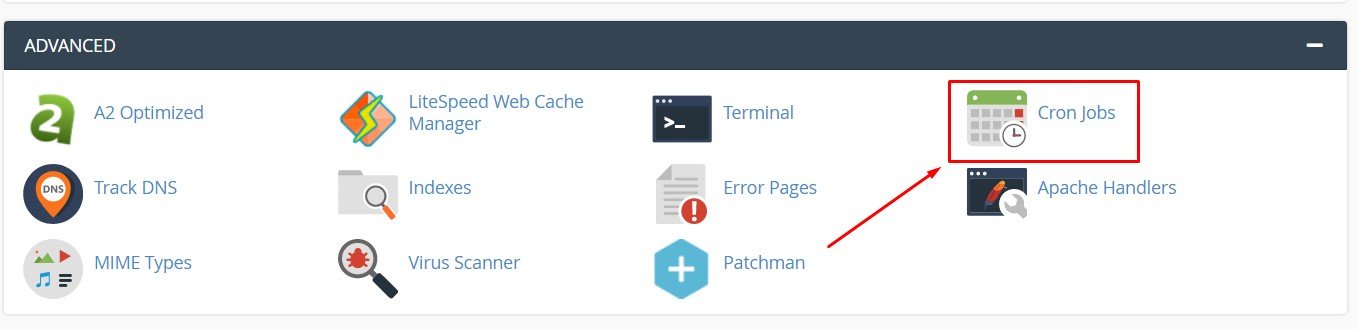
1. Login to your hosting & go to 'Cron Jobs' menu
Cron Job Menu in CPanel
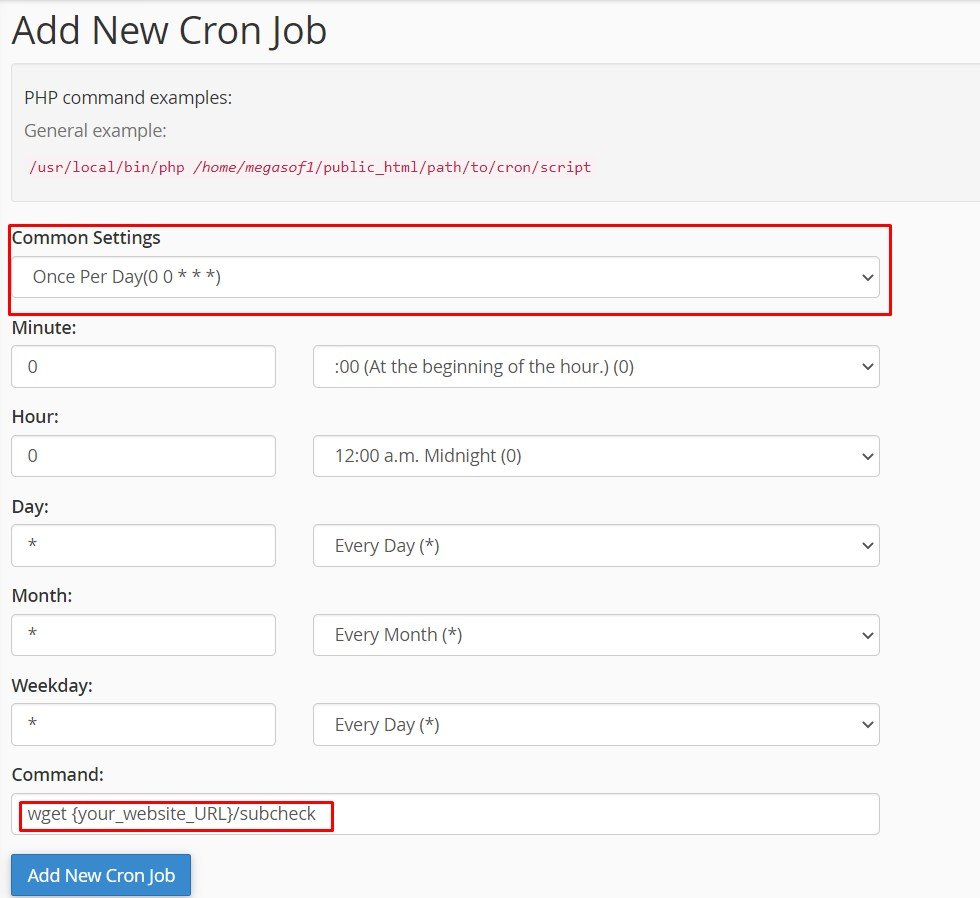
2. Go to 'Add New Cron Job' section
Add New Cron Job Form
3. Select 'Once Per Day(0 0 * * *)' option from the dropdown of 'Common Settings' [Follow red marked part of the above image]
4. Add
wget {your_website_url}/subcheck
- this command in 'Command' input field [Follow red marked part of the above image]. {your_website_url} will be replace with your website url .
5. Now click on 'Add New Cron Job' to add your cron job.

Admin Login Details:

You can manage each and everything of this system from this Admin panel such as Mail settings, Contents, Pages, Packages, Payment Logs, Payment Gateways, Roles / Permissions, Registered Users, Website Color etc...
Admin URL: your_website_url/admin
Username: admin
Password: admin

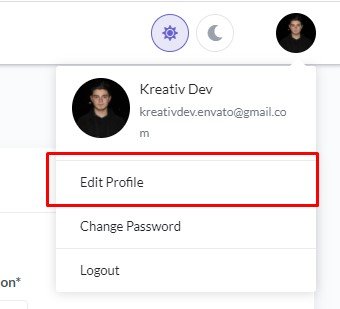
Admin Profile:

Admin can change username & some details from here (screenshot):
Admin Profile Page

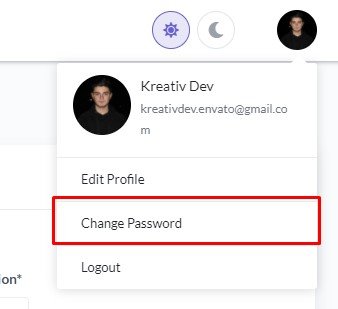
Admin Password:

Admin can also change password from here (screenshot):
Admin Change Password Page

Automatic Subdomain Setup:

Written Guide:

  • Let us first understand What is Automatic Subdomain?. Automatic subdoamins means users will be able to show their portfolio website on the subdomain ({username}.your_domain_name) just after registering with a pricing plan (which has Subdomain feature)
  • For automatic subdomain support , you need to add a wildcard subdomain (*.your_domain_name) in hosting so that user gets a subdomain ({username}.your_domain_name) for his portfolio website just after registering with a subscription package which has subdomain support.
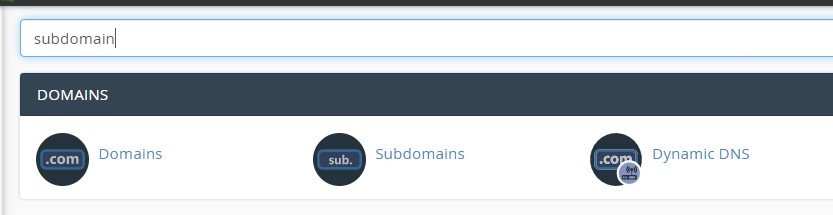
  • To create a wildcard subdomain, login to your hosting account. Search for subdomains in your hosting (follow screenshot). Click on Subdomains option
    Screenshot:
    Search for Subdomains
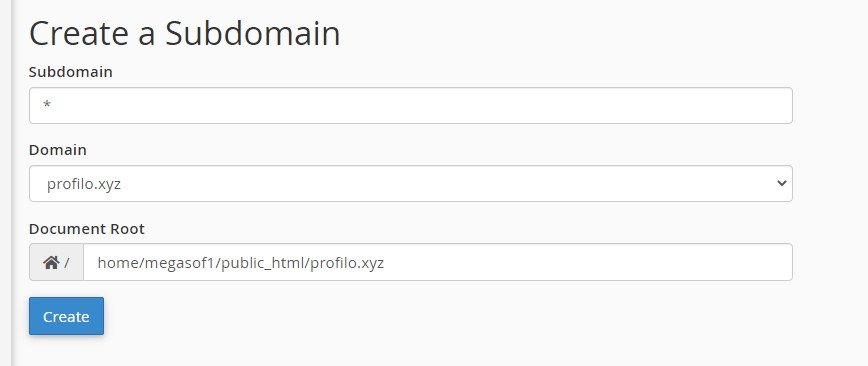
  • You will see a form to create subdomain.
    • Enter * in Subdomain input field (follow below screenshot)
    • Choose your domain (for which you are creating subdomain) from Domain dropdown (follow screenshot)
    • Enter the folder location where you have put the installable project files (follow below screenshot)
    • Now, click on Create button

    • Screenshot:
      Wildcard Subdomain Form
  • Now you will have to wait for sometimes till the DNS propagation is completed. It is said that DNS propagation takes upto 72 hours but mostly it is completed within few hours.
  • For testing, Create a trial package with Subdomain feature & register a user with that package.
  • Lets assume you have registered an user with username: User1, then the subdomain for this user will be user1.your_domain_name
  • For testing, clear the cache in the browser & enter the subdomain user1.your_domain_name. You may not see the profile page yet due to DNS propagation time. Repeat the process of clearing cache & entering subdomain in browser again & again, until the DNS propagation is completed and the profile page shows up in the subdomain (user1.your_domain_name)
  • From this point, whenever a user registers, he / she will get a subdomain instantly. No more waiting.
  • Now, you will see the the subdomain is loaded on http (http://user1.your_domain_name). It will not support https yet. Problem is, AutoSSL in hosting cannot assign SSL certificate on Wildcard Subdomains, but we need Wildcard Subdomains for automatic subdomain support.
  • There are 2 ways to make the subdomains support https (https://user1.your_domain_name). You can implement any one of them.
    1. Way 1: By adding each subdomain for each registered user (who has purchased package with subdomain feature) explicitly in your hosting [this way is free]
      Steps:
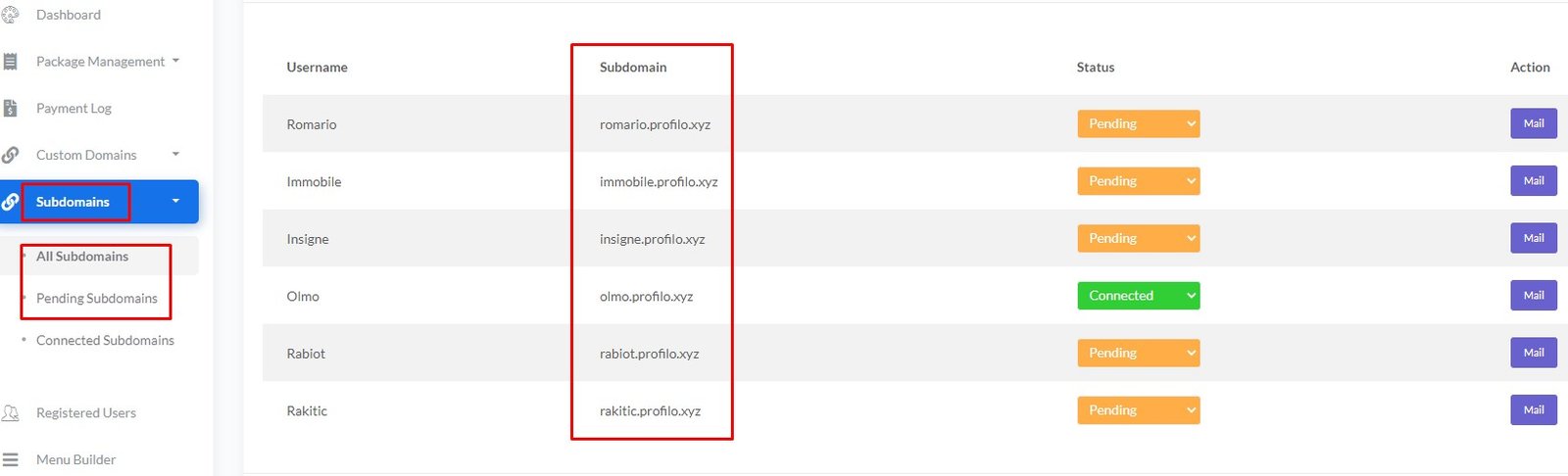
      • After a user registers in your website with a package (which has subdomain feature), you will be able to see the subdomain of that user in Subdomains > All Subdomains or in Subdomains > Pending Subdomains of Admin dashboard (follow below Screenshot)
      • Screenshot:
        Subdomains in Admin Panel
      • Lets assume, a user with username user1 has registered with a subdomain supported package & got a subdomain user1.your_domain_name
      • Now, go to Subdomains > All Subdomains or Subdomains > Pending Subdomains in Admin dashboard
      • There, You will find user1.your_domain_name with Pending status
      • Copy the subdomain user1.your_domain_name
      • Now, login to your hosting & Search for subdomains (follow below Screenshot). Click on Subdomains option
        Screenshot:
        Search for Subdomains
      • There, You will see a form to create subdomain.
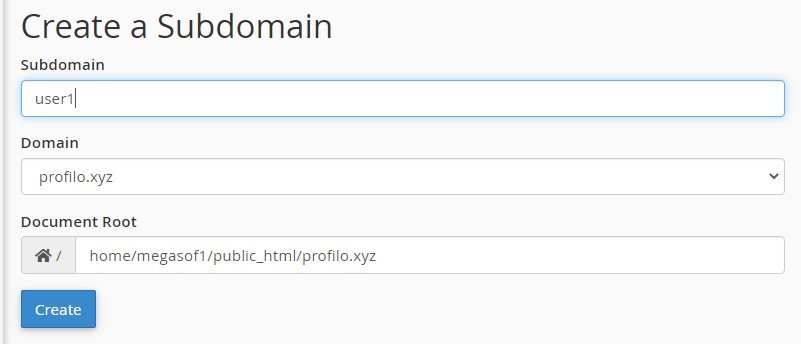
        • Enter user1 in Subdomain input field (follow below screenshot)
        • Choose your domain (for which you are creating subdomain) from Domain dropdown (follow screenshot)
        • Enter the folder location where you have put the installable project files (follow below screenshot)
        • Now, click on Create button

        • Screenshot:
          User Subdomain Form
      • Now go to Subdomains > All Subdomains or in Subdomains > Pending Subdomains of Admin dashboard & change the status from Pending to Connected of the subdomain user1.your_domain_name. If you want, you can send a mail to the user from there.
      • For testing, clear the cache in the browser & enter the subdomain with https (https://user1.your_domain_name). You may not see the profile page yet. It usually takes few minutes (arround 15 mins) to assign SSL certificate to the added subdomain. Repeat the process of clearing cache & entering the subdomain with https (https://user1.your_domain_name) in browser again & again, until the hosting AutoSSL assigns the SSL certificate to the added subdomain (user1.your_domain_name). Once assigned, the profile page will show up on https://user1.your_domain_name
    2. Way 2: By purchasing a Wildcard SSL & adding the SSL with your Wildcard Subdomain (*.your_domain_name) [this way is not free].
      In this case, you don't need to add subdomain for any user in your hosting. You only need to add the Wildcard SSL with Wildcard Subdomain (*.your_domain_name)
      You can purchase Wildcard SSL from any provider (Namecheap, godaddy etc..)
      After purchase, please contact with your hosting support. They will show you the procedure of connecting Wildcard SSL with your Wildcard Subdomain. The SSL connecting procedure is different for each hosting provider.
    3. ** You can either choose Way 1 (which is free) or Way 2 (which is not free) to support https in the registered user's subdomain

Custom Domain Setup:

Written Guide

  • If a user wants to load his portfolio website in a custom domain, he will need to purchase a package which has custom domain feature
  • Let's assume, the user has purchased a domain named customer.tattoo & he wants to load his portfolio website under customer.tattoo
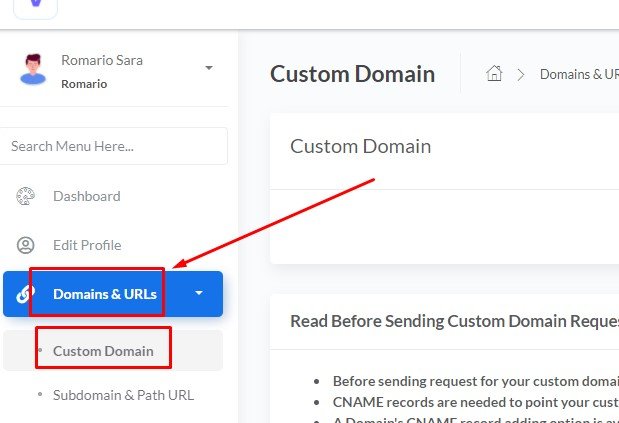
  • Once the user purchased the package (which has custom domain feature), he will get a Custom Domain menu in Domains & URLs (follow below Screenshot) in User Dashboard
    Screenshot:
    Custom Domain Menu
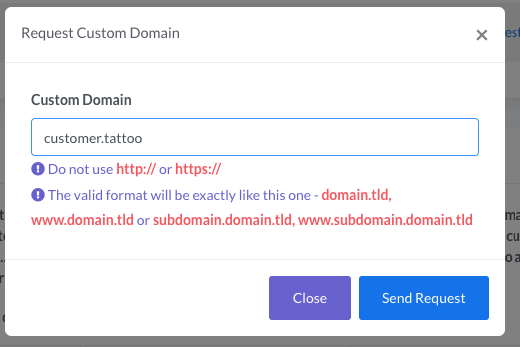
  • There, he will get a option to send request for his custom domain customer.tattoo
  • Before sending the request, the user will have to add CNAME record to his custom domain customer.tatoo from the domain registrar (Namecheap, godaddy etc..) account of customer.tattoo.
    CNAME record is basically needed to point a custom domain to your business domain so that your website can show the portfolio website to the custom domain.
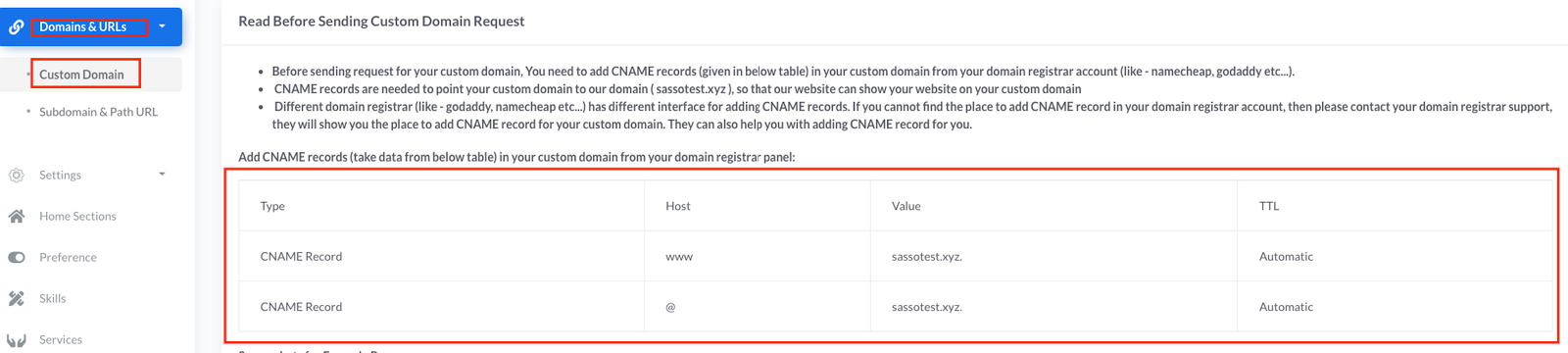
    The user will get the CNAME record data in the table in Domains & URLs > Custom Domains page of User Dashboard (follow below Screenshot).
    Screenshot:
    CNAME Record Data
    Different domain registrar (Namecheap, Godaddy etc...) has different interface for adding CNAME record. If the user cannot find the option to add CNAME record in domain registrar's dashboard, then please ask the user to contact the domain registrar's support. The support will help them to find it.
  • After adding CNAME record, it will take some time to complete DNS propagation of the custom domain customer.tattoo. It is said that it takes upto 72 hours to complete DNS propagation. But, generally the propagation is completed much quicker than that (few hours)
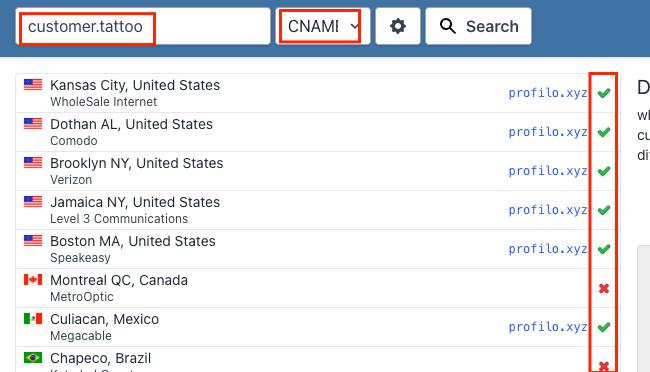
    Users can visit this website (https://www.whatsmydns.net/) to check if the DNS propagation of the custom domain customer.tattoo is completed all over the world or not
    DNS Propagation Check
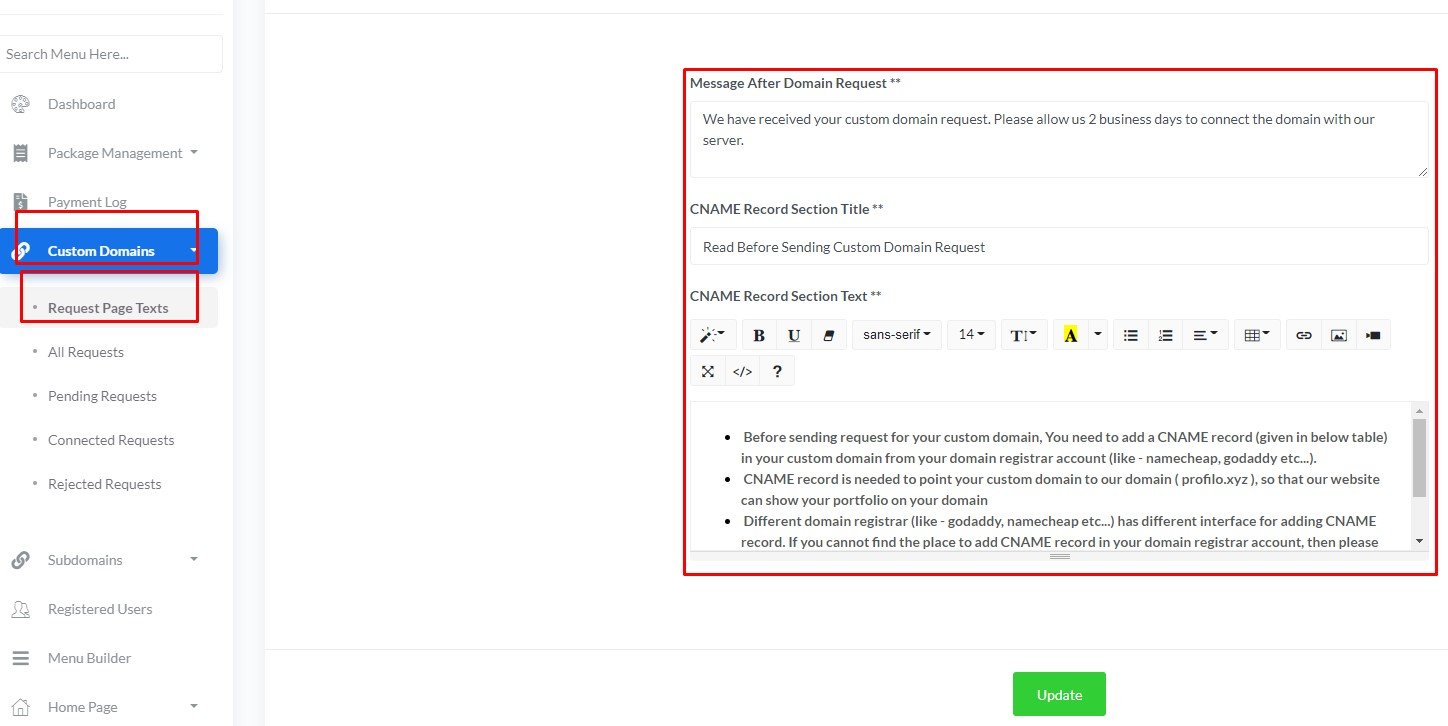
  • You can update text of this page (Domains & URLs > Custom Domains page of User Dashboard) from Custom Domains > Request Page Texts of Admin Dashboard
    Custom Domain Text Admin
    Those updated texts will be shown in Domains & URLs > Custom Domain of User Dashboard
    Custom Domain Text User
  • Once the DNS propagation is completed, the user can finally send request for the custom domain customer.tattoo
    Screenshot:
    Custom Domain Request
  • After that, You can see the requested custom domain customer.tattoo in Custom Domains > All Requests or Custom Domains > Pending Requests in Admin Dashboard
  • Now, you need to add this requested custom domain customer.tattoo as an addon domain in your hosting
    Steps to do that:
    • login to your hosting & search for addon domains
      Screenshot:
      Search Addon Domain
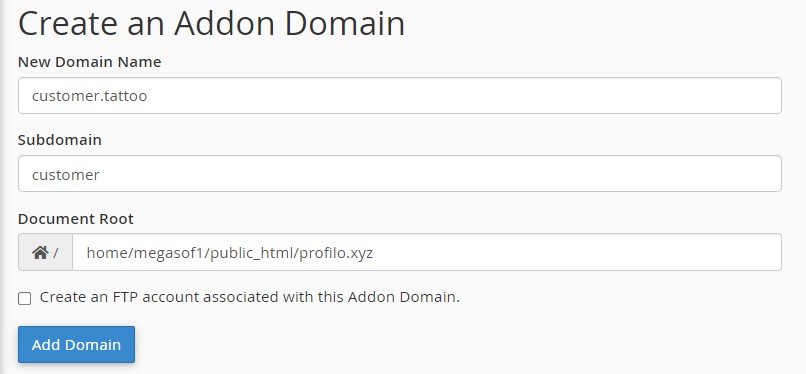
    • After clicking on Addon Domains menu, you will see a form to add Addon Domain
      • Enter the user's requested custom domain customer.tattoo in New Domain Name input field (follow below screenshot)
      • After entering New Domain Name, the Subdomain field will be prefilled automatically. You don't need to do anything for this field
      • Enter the folder location where you have put the installable project files (follow below screenshot)
      • Now, click on Create button

      • Screenshot:
        Custom Domain Form
    • After that, please don't forget to change the status of customer.tattoo from Pending to Connected in Custom Domains > All Requests or Custom Domains > Pending Requests of Admin Dashboard
    • The DNS propagation of customer.tattoo is completed on your user's location. Thats why he had been able to send request for the custom domain customer.tattoo. But it might be the case, that the DNS propagation is not completed on your location yet. Hence, you might not see anything after visiting the custom domain customer.tattoo yet. But no worries, As DNS propagation has already been completed on the user's end, he will be able to see his portfolio website after visiting customer.tattoo, just after you add customer.tattoo in your hosting & change the status of the custom domain to Connected from Admin Dashboard. You will also be to see the user's portfolio website visiting customer.tattoo, once the DNS propagation for customer.tattoo is completed on your location too
    • If anyday, the user wants to change his current custom domain & request for a new custom domain, he can do that. In that case, he will need to add CNAME record for his new custom domain & send request again for the new custom domain.
      You can see his new request in Custom Domains > All Requests or Custom Domains > Pending Requests of Admin Dashboard
      There, You will need to change the status of his current custom domain customer.tattoo to Removed
      Screenshot:
      Remove Custom Domain
      Also remove the current custom domain customer.tattoo from your hosting addon domains list
      Remove Addon Domain
      Then, add the new requested custom domain as addon domain in your hosting (steps are already mentioned above)
      & after that, change the status of the new requested custom domain to Connected from Custom Domains > All Requests or Custom Domains > Pending Requests of Admin Dashboard

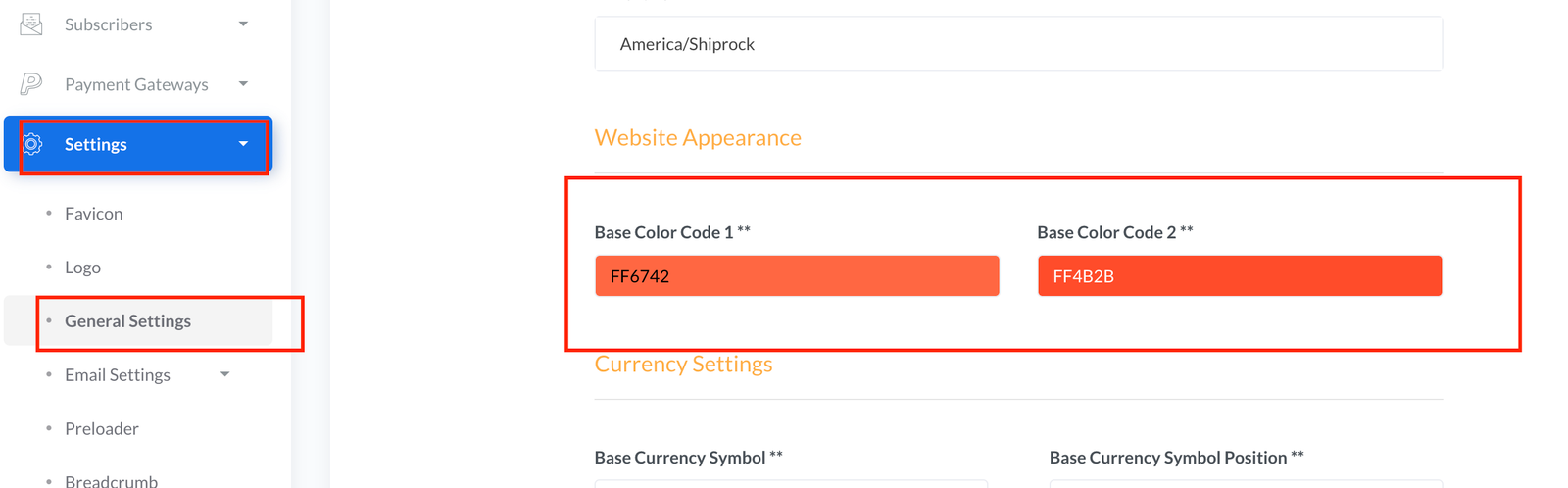
Website Color:

Admin can change website's base color from 'Settings > Website Appearance' of Admin Dashboard:
Website Color Settings

Preloader:

Admin can upload a GIF as preloader from 'Settings > Preloader' of Admin Dashboard

Custom Pages:

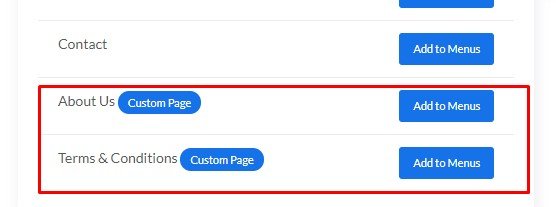
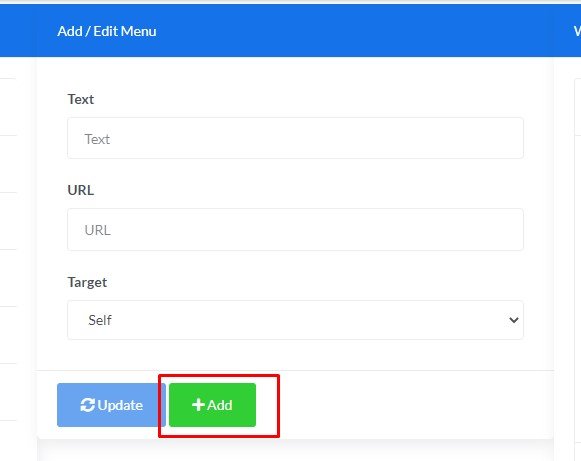
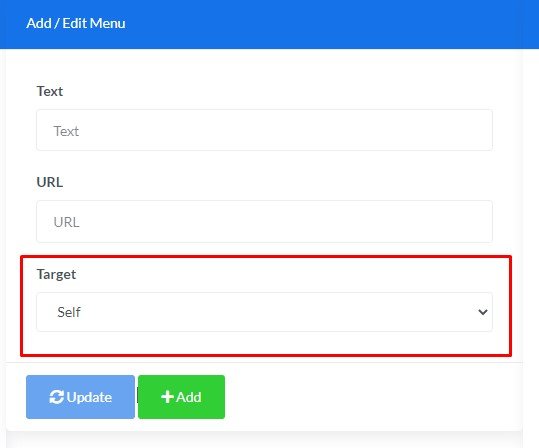
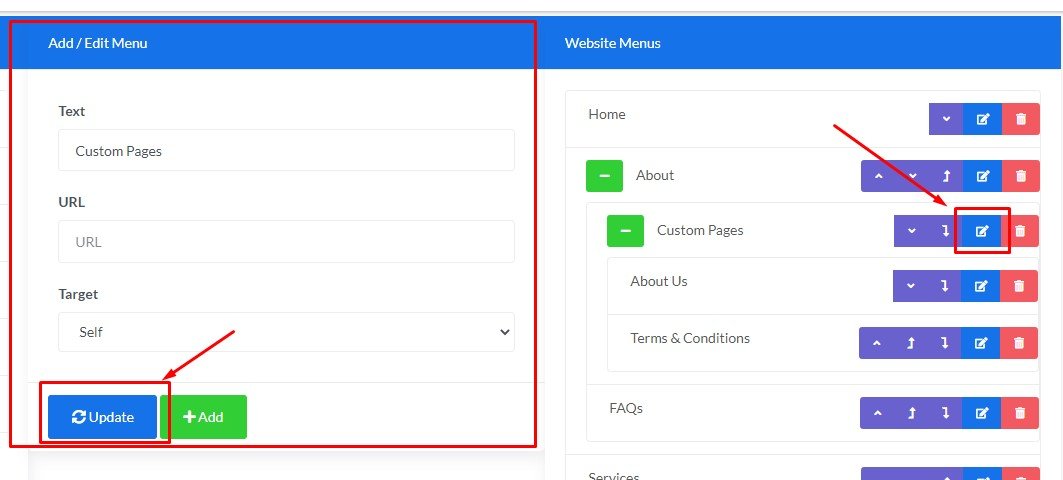
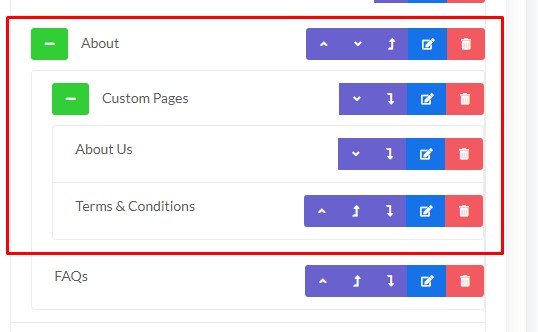
Admin can create pages from 'Custom Pages > Create Page' of Admin Dashboard & add them in website menu using Drag & Drop Menu Builder

Email Settings:

Mail From Admin:

Admin can setup SMTP to set a mail from which all the mails will be sent to customers via this website. Admin can setup SMTP details in Settings > Email Settings > Mail From Admin

Some Important Notes regarding SMTP

  • Sometimes SSL encryption has some issues in some server as PHP is very strict now a days to check SSL. In that case, please choose TLS
  • If you choose TLS, then dont forget to change the SMTP Port accordingly (in most cases, it is 587. But on your server it could be different)
  • If you still face issues , then please contact hosting support & show them the SMTP details you are using in Admin Panel's SMTP form. It mostly depends on server so SMTP issue can only be solved by hosting support.

Mail to Admin:

Admin can setup this mail from which will be used to recieve mails from this website. Admin can this mail in Settings > Email Settings > Mail To Admin

Some Important Notes:

  • If you face any issue (like - mail not coming from contact form to the setup mail), then please create a ticket here: https://kreativdev.freshdesk.com/
    We will replace the PHPMailer code with mail()
  • If it still does not work, then you will need to contact hosting support & tell them PHP mail() function not working. They will be able to solve it. Mail mostly depends on server.

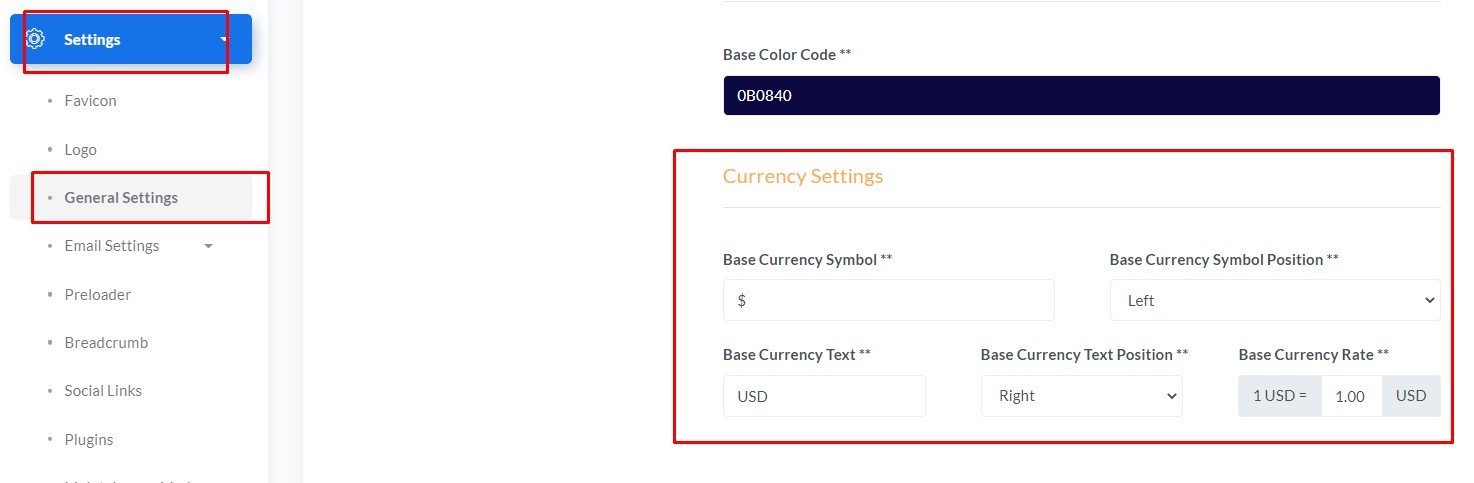
Currency Settings:

Admin can set currency in Settings > General Settings
Admin must set the currency rate based on USD
Currency Settings

Payment Gateway Settings:

Online Gateways

All the online payment gateway's credentials can be set in Payment Gateways > Online Gateways

Admin can also set the payment gateways in test / live mode

Offline Gateways

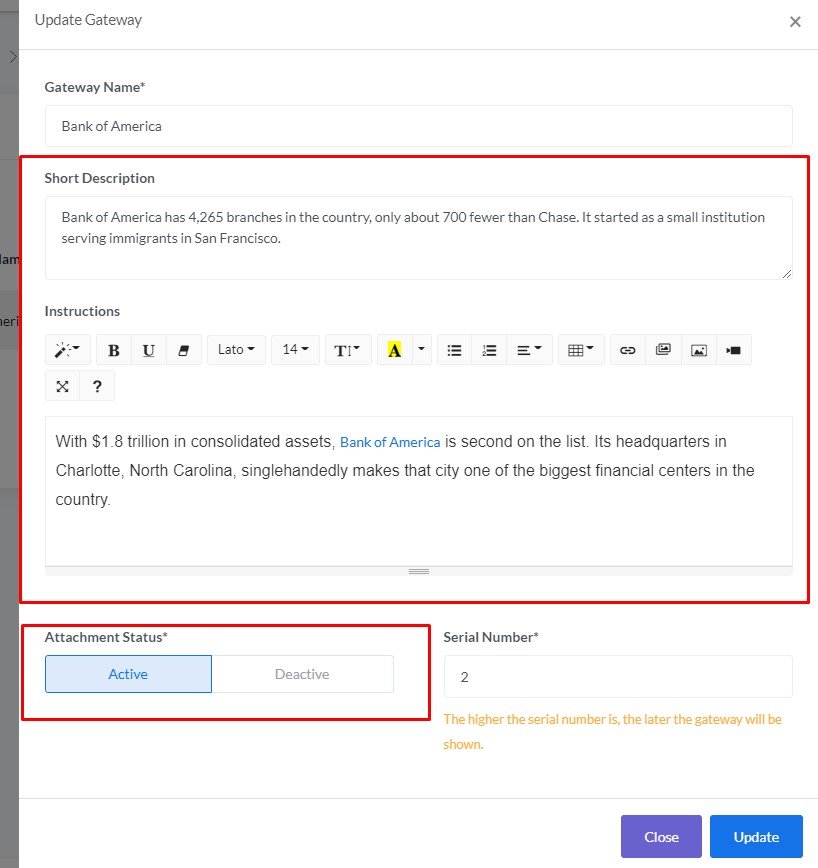
Admin can create offline gateways to receive booking payments

Admin can setup instructions & description (optional) which will be shown to customers in checkout page

Admin can also enable / disable attachement status

  • If attachement enabled, then customer will have to upload the image of their transaction during checkout
  • If attachement disabled, then customer the attachement field wont be shown to customers during checkout
Offline Gateway Description

Language Management:

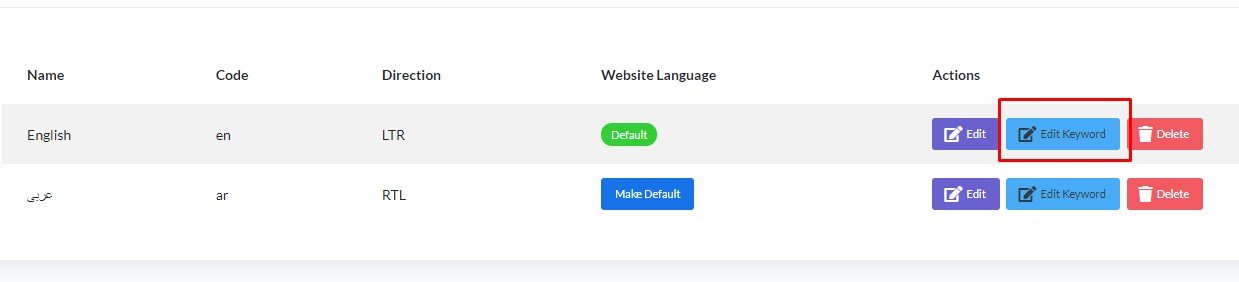
Admin can create unlimited language & translate the website for that language from Language Management of Admin Panel

After a adding a language, Admin need to click on Edit Keyword button of that language to translate all the keywords of the website to that language

Edit Language Keywords

Admin can even change the keywords of English Language too

Announcement Popup:

InstantWeb provides 7 types of popups during creating a popup

Popup Types

Admin also active / deactive any popup.

Multiple popups can be shown in website. Popups will be visible accroding to serial number (set by Admin)

Maintenance Mode:

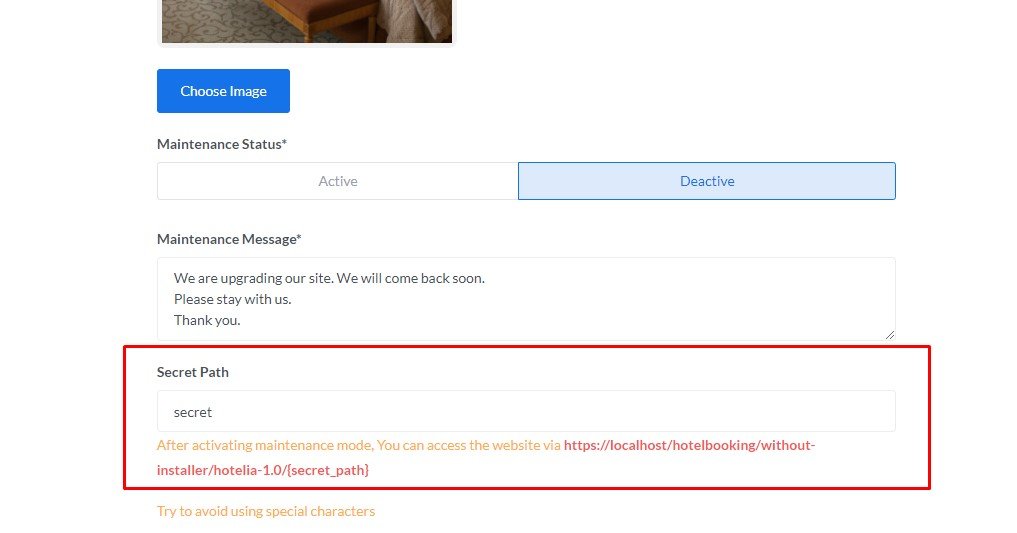
Admin can set the website under Maintenance Mode from Settings > Maintenance Mode

In maintenance mode Admin can always access the Admin Panel

To access the frontend Admin can setup a secret path (avoid using any special characters in it, use plain letter & number combination)

Maintenance Secret Path

Anyone who knows the secret path can access the website by typing {website_url}/{secret_path} in browser

Admin / Roles & Permissions:

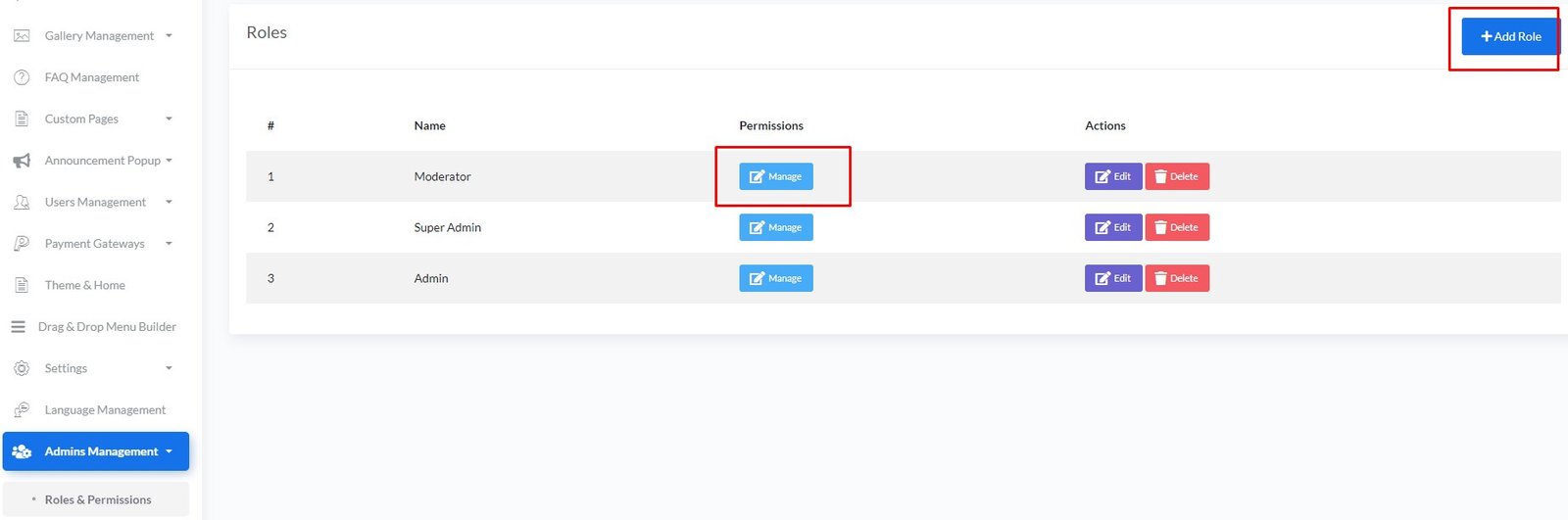
Owner can create roles from Admins Management > Roles & Permissions & can assign permission clicking on manage button of that role

Roles and Permissions

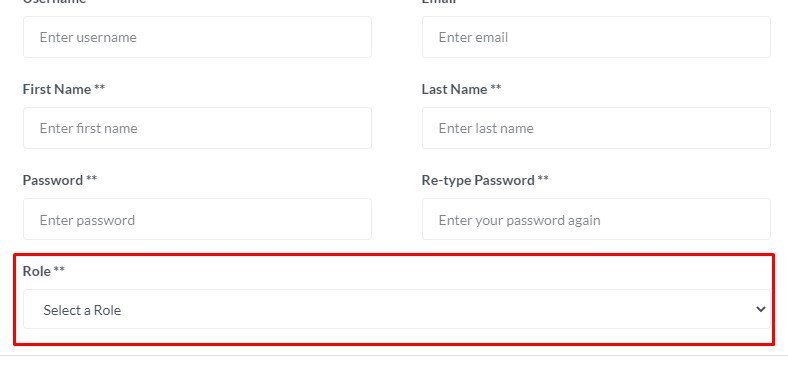
Owner can create a Admin & assign a role to that Admin

Add Admin Form